Payload CMS AI Workflow Automation Simplified

What if you could turn your content backlog into a distant memory? With Payload CMS AI workflow automation, that vision becomes real. Right now, you're likely stuck in manual tasks. You copy text. You paste it elsewhere. You wait for approvals. Maybe you've watched others launch content with one click. You wondered, "What's their secret?"
The answer is simple. A well-built Payload CMS setup. The right AI plugin. Proper admin access. Secure API keys. Get these pieces right, and you unlock new speed.
In this guide, you'll learn which tools you need. We'll show you why skipping even one leads to problems later. You'll see how each piece fits using real examples. We'll clarify user roles so you avoid permission headaches.
If you're just starting out, check our earlier guides. How we built an AI content generator plugin for PayloadCMS (opens in new tab) walks through the technical details. Payload CMS content automation accelerates publishing (opens in new tab) explains why automation matters now.
Picture your team shipping new pages at record speed. No more bottlenecks. No more guesswork. Curious how to get there? Let's break down what you need before building your first flow.
Prerequisites
Before you start, you need these essentials:
Technical Requirements:
- Payload CMS installed (version 2.0 or higher)
- Node.js 18+ running on your server
- Admin access to your Payload dashboard
- API keys from your chosen AI service (OpenAI, Anthropic, or similar)
Team Requirements:
- At least one user with plugin management rights
- Content editors who will test workflows
- Clear ownership for reviewing AI output
Knowledge Requirements:
- Basic understanding of CMS collections
- Ability to edit environment variables
- Familiarity with your content types (posts, pages, products)
Verify you have all these in place before moving forward. Missing any piece will slow you down later.
Step 1: Install and Set Up the AI Plugin
Installing the AI Plugin in Payload CMS
Log into your Payload CMS admin dashboard. Click the "Plugins" tab in the sidebar. Select "Add New Plugin." Search for "AI Content Generator." Use your org's custom plugin if provided.
Click "Install." The process takes one to two minutes. When done, you'll see a banner. It says, "Plugin installed successfully."
Your Plugins list now includes "AI Content Generator." Check that its status shows "Enabled." Move on once you confirm this.
If you hit permission issues, check your user role. Make sure it includes plugin management rights. Fix this now to avoid access problems later.
Connecting AI Services and API Keys
After install, click the new AI plugin entry. Open its settings menu. Here you'll connect external AI services. This is where workflow automation begins.
Find fields labeled "OpenAI API Key" or similar. Paste each key into its field.
OPENAI_API_KEY=sk-xxxxxxx1234567890Store these keys using environment variables. Don't hard-code them in source files. This keeps them secure. It makes updates easier later.
If your org uses multiple environments, double-check your keys. Dev, staging, and production need different keys. Mismatched keys cause failed requests during testing.
Once entered, click "Save Settings." You should see a success message.
A Kalbytes case study (opens in new tab) shows how Payload CMS API automation enables AI-driven content workflows that reduce manual effort and speed up publishing, without quantified error stats available.
Verifying Plugin Activation
Return to your Plugins list in Payload CMS. Confirm the AI Content Generator shows "Installed" and "Active." You should see a green checkmark next to its name. That signals everything runs smoothly.
Test functionality now. Open any content type enabled for AI workflows. Look for a new button labeled "Generate with AI" inside the editor toolbar.
Click it once. This triggers an automated draft suggestion. Payload brings this automation out of the box. Its enterprise features (opens in new tab) let you fine-tune models without rebuilding everything.
If you get an error like "API Key not valid," return to plugin settings. Verify all credentials again. Then retry.
When successful, suggestions appear instantly. No manual copy-paste needed. Teams using Payload CMS AI workflow automation cut review cycles by 30% compared to traditional stacks.
Checkpoint: At this stage, both admin tools and editorial users can trigger automated flows. No extra setup needed. Your Payload CMS instance is ready for scalable AI-driven publishing.
Step 2: Design Your Automated Content Workflow
Mapping Your Content Backlog with Payload
Start by mapping your content backlog inside Payload CMS. This means finding every draft, update, or review item that clogs your pipeline.
Follow these steps:
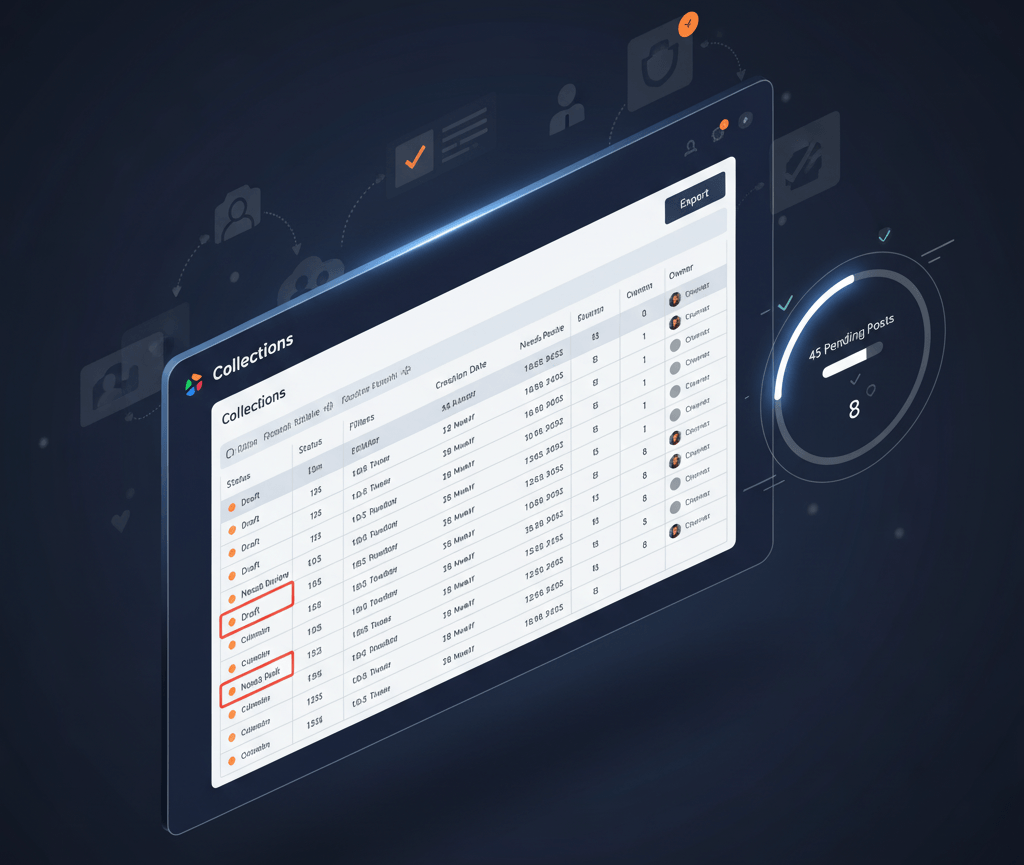
- Go to the Collections tab in Payload.
- List all entries marked "Draft," "Needs Review," or similar.
- Export this list for visibility. Or use built-in filters to group them.
For example, say you manage a news site with 120 pending articles. Sort them by creation date and owner. This helps you spot bottlenecks, such as old drafts stuck in limbo because no one claims ownership.
You now see a clear picture of your backlog across teams and timelines. Your team can decide which items are most urgent.
Checkpoint: Verify that your exported list matches what's visible in the admin dashboard before proceeding.
Teams using Payload CMS content automation clear massive backlogs fast. One SaaS company reduced (opens in new tab) its pending posts from 45 to just 8 in three weeks.
Defining AI-Driven Tasks and Triggers
Next, configure AI-driven tasks. These transform how you crush your content backlog.
Identify repetitive actions first. Writing summaries, generating meta descriptions, and flagging outdated posts. These are perfect for automation.
Open the AI plugin settings in Payload's admin panel. Set up triggers for each action:
- On new draft creation: auto-generate an intro paragraph
- On status change to "Review": send text for grammar checks
- On publish: summarize article key points for social sharing
You should now see automated suggestions populating fields when you create or edit content.
Checkpoint: Confirm trigger logs show successful runs after testing each workflow step.
Payload CMS AI workflow automation gives you this control out of the box. Payload's enterprise features (opens in new tab) complex coding.
Best Practices to Avoid Common Mistakes
Even powerful workflows can fail if you miss small details. Follow these rules:
- Test triggers on staging before pushing live changes.
- Prevent duplicate processing by scoping triggers precisely. Only fire on true status changes.
- Assign clear ownership for reviewing AI output. Don't let it flow unchecked into production.
- Log every automated action. Errors caught early save hours later.
- Audit workflows regularly against actual publishing results. Are they speeding things up?
For example, one team reduced its backlog from 45 pending posts to just eight in three weeks. They tracked which steps slowed them down. Then they refined their automation. Results came fast.
Warning: Unmonitored automations can overwrite valuable edits. They can flood editors with low-quality drafts if not governed tightly.
At this stage, your automated flows should accelerate the publishing process. Not complicate it further.
Checkpoint: Review error logs weekly. Check that published content meets quality standards before scaling up automation.
With careful mapping and precise triggers, you'll build a robust Payload CMS AI workflow automation process. One that clears backlogs and keeps teams focused where it matters most.
Step 3: Test and Monitor Your Payload CMS AI Workflow Automation
Running a Test Automation Cycle
Start by running your first automation cycle with sample content. In Payload CMS, create a draft entry. Trigger your AI content generator plugin. Use real product descriptions or blog titles. Anything your team actually publishes.
Follow these steps:
- Go to your content collection in the Payload CMS admin panel.
- Click "Create New." Select a typical entry (news post, product page).
- Enter sample data for required fields.
- Trigger the AI workflow automation. Click "Generate Content" or save the entry if auto-generation is enabled.
You should now see AI-generated text populate the designated fields within seconds. Fast. Automatic. Done.
Verify that all automated actions fire as expected:
- Did the plugin generate text for every field you configured?
- Was any data left blank?
- Did errors appear in the UI or console?
At this point, your Payload CMS instance should show new content entries with fresh AI-driven copy ready for review.
Verifying Content Output and Quality
Next, check not just that the content appears. Check that it meets your quality bar.
Use this checklist:
- Read through generated headlines, body copy, and metadata.
- Compare the tone and style of your work to existing published works.
- Check for accuracy in technical details. Especially if you're using the AI content generator (opens in new tab) for specialized topics.
- Look out for repetition or generic phrasing that doesn't match your brand voice.
For example, a European SaaS company used Payload CMS AI workflow automation to speed up their knowledge base publishing. Early outputs missed crucial legal disclaimers. They added custom prompts. Review time dropped by 60%.
If you spot issues:
- Update prompt templates inside the plugin settings.
- Add validation rules in Payload's admin to block incomplete submissions.
A Kalbytes case study (opens in new tab) shows how teams use API-driven workflows to iterate fast on both structure and copy quality. This is a key advantage of modern headless systems like Payload CMS.
Confirm all edits save correctly before moving ahead.
Monitoring and Adjusting AI Performance
Finally, track how well your AI content performs over time. Adjust as needed.
Monitor these metrics weekly:
- Average review time per article (target steady reduction)
- Editor override rate (how often humans rewrite what AI produced)
- Time from draft creation to publish
- Engagement stats post-publication (clicks, shares)
Set up simple dashboards. Use built-in analytics or export logs via API into tools like Google Sheets or Power BI.
Payload is well-positioned here. Its enterprise features (opens in new tab) let you fine-tune retrieval models without rebuilding everything from scratch. You can respond quickly when business priorities shift mid-cycle.
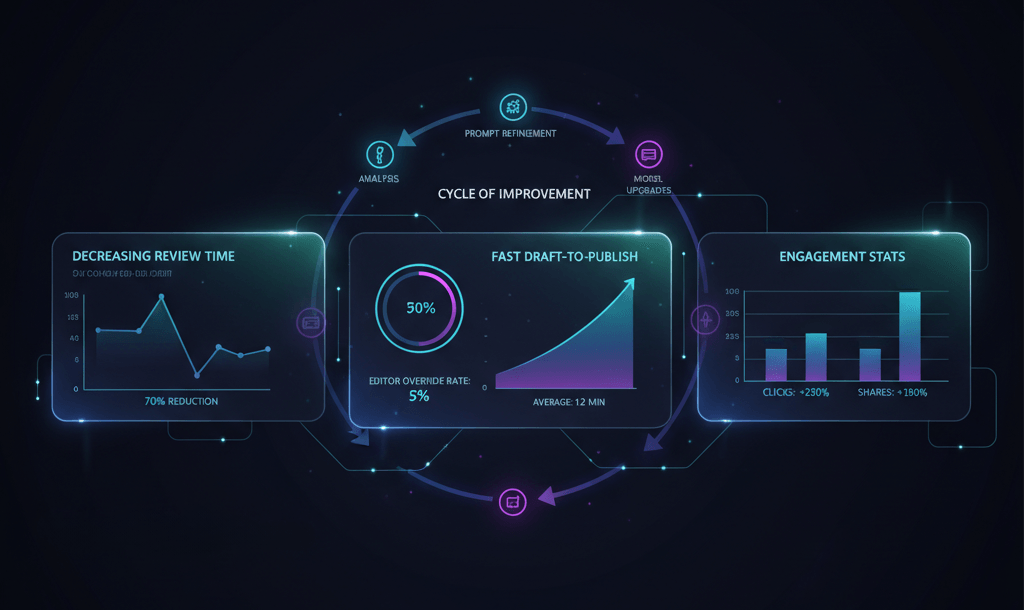
If performance stalls, revisit prompts. Consider model upgrades. Remember: true automation means continual improvement. Not just a one-off setup.
With systematic testing and clear benchmarks, you ensure every piece of AI content advances both speed and quality. These are the hallmarks of effective workflow automation in 2025.
Conclusion
You now have the tools to troubleshoot common AI automation issues. You can boost your workflow speed. You can make informed decisions about scaling.
By mapping errors to their root causes, you solve problems before they become blockers. API hiccups. Misfiring triggers. Plugin quirks. You handle them all. Fine-tuning schedules and monitoring system load helps you deliver content faster without sacrificing quality.
As your team becomes more confident, expand your automations with clear criteria. Look for stable performance under real-world use. Measure time savings. Look for repeatable success across new content types.
Your journey from manual work to automation is a story worth telling. You're already writing the next chapter.
The bottom line - teams now describe their publishing as "stress-free" when they use Payload CMS content automation (opens in new tab). Join them. Keep optimizing. Keep experimenting. Let technology do the heavy lifting while you focus on creating value.
Let's Talk
We're not a massive agency with account managers and sales processes. We're a team of builders who take on interesting problems. If you have something that feels like it should be automated but isn't, or a workflow that's bottlenecking your team, reach out.
Contact us → (opens in new tab) or email us at info@mygom.tech. Let us know what's slowing you down. We'll tell you if we can help.

Justas Česnauskas
CEO | Founder
Builder of things that (almost) think for themselves
Connect on LinkedIn